
As of Monday, March 30, 2026, the off-campus access system has been migrated from EZproxy to OpenAthens. When accessing electronic resources from off campus, please use OpenAthens.
Please note that some electronic resources may be temporarily unavailable for off-campus access due to configuration issues or service disruptions on the provider’s side. Notices are displayed in the search results of E-Resource Portal and WINE for affected resources. Please check these notices before use. Until the providers have resolved these issues, please access the resources from the campus network.
This service allows you to access electronic resources (databases, e-journals, e-books, etc.) contracted by the university from off-campus locations (such as your home or any other remote site).
When using the service, you must log in and authenticate using your MyWaseda account (authentication uses the OpenAthens system).
Off-Campus Access is available to current Waseda University undergraduate students, graduate students, full-time faculty and staff. You will need your MyWaseda ID and MyWaseda password for authentication.
*Students of Waseda University Senior High School, Waseda University Honjo Senior High School, and Art and Architecture School of Waseda University are not eligible.
*Part-time faculty and staff are not eligible. However, only part-time lecturers may access some licensed electronic resources. For details, please refer to “this link” (for part-time lecturers only).
To access electronic materials from outside the university, please use the following methods.
(1) Search for materials using the library website’s Discovery Service (WINE) or E-Resource Portal, then click the link for the item you want to access.
(2) You will be automatically redirected to the university’s authentication screen. Log in with your MyWaseda account to view the materials directly.
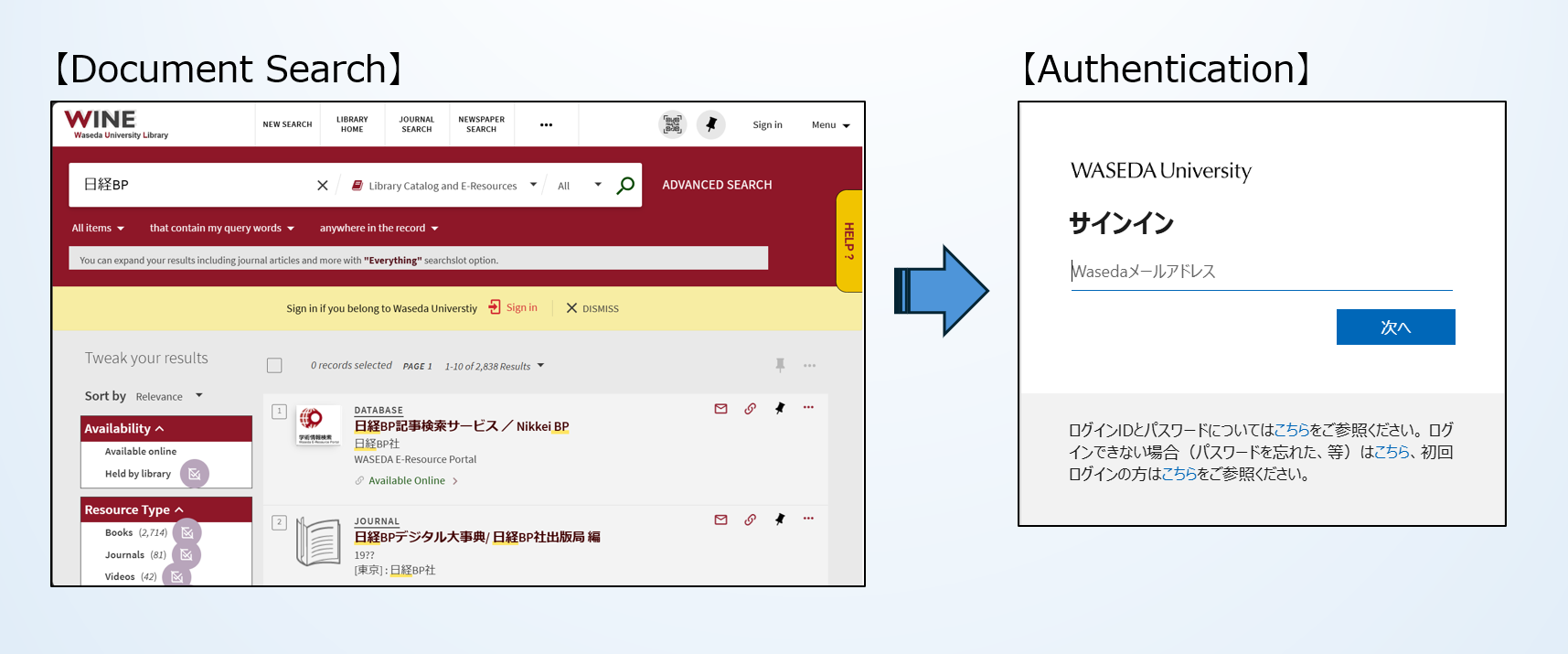
※If you are already logged in to MyWaseda beforehand, the authentication screen will not appear. You are already logged in for off-campus access. Once you successfully log in, you can bypass the authentication screen and access content directly for a certain period of time.
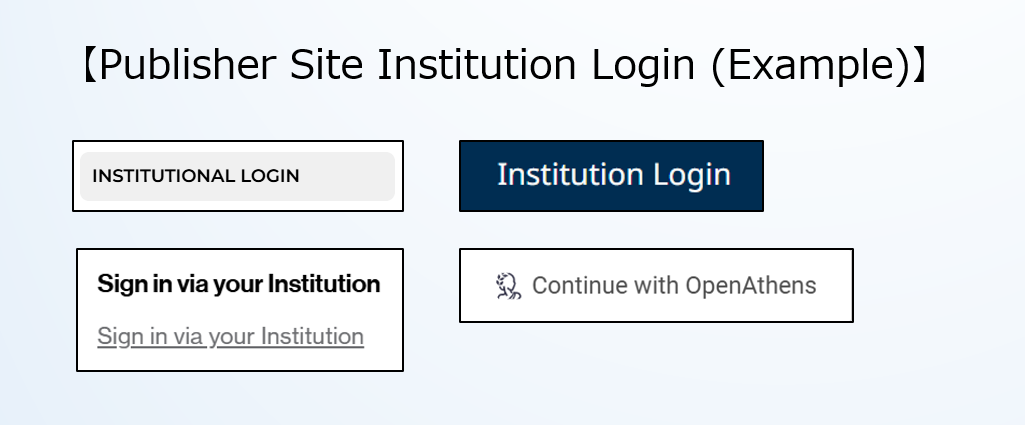
You can also log in directly from some publishers’ websites that support the SSO (Single Sign-On) method. Login options vary slightly by publisher, so please follow the login instructions provided on each publisher’s website.
(1) Select links such as “Institutional Login” or “Sign in via your institution” on the publisher’s website.
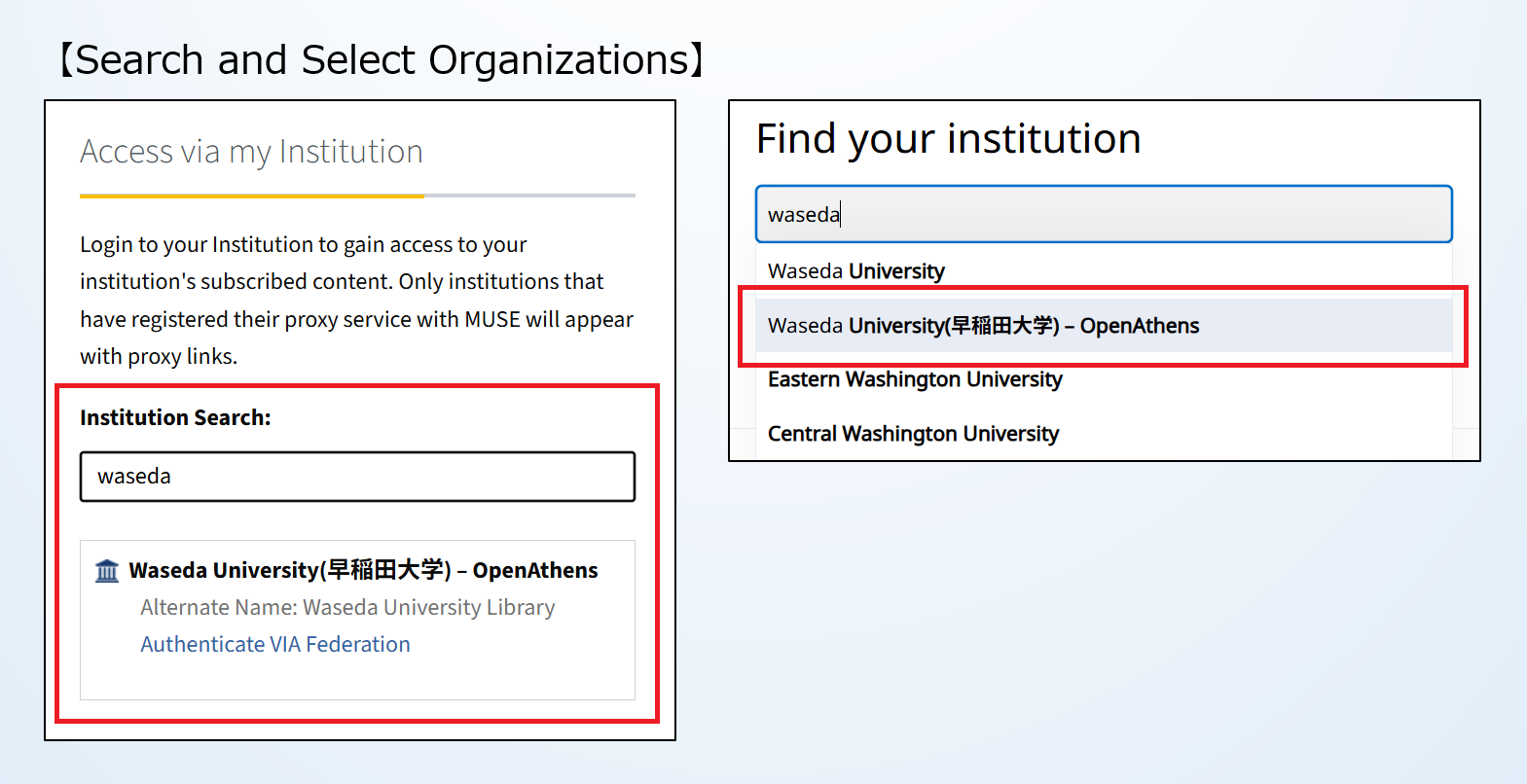
(2) In the institution‑name search box on the OpenAthens screen, enter “Waseda University (早稲田大学) – OpenAthens” and select it from the list.
(3) The university’s authentication screen will appear. Please log in using your MyWaseda account.
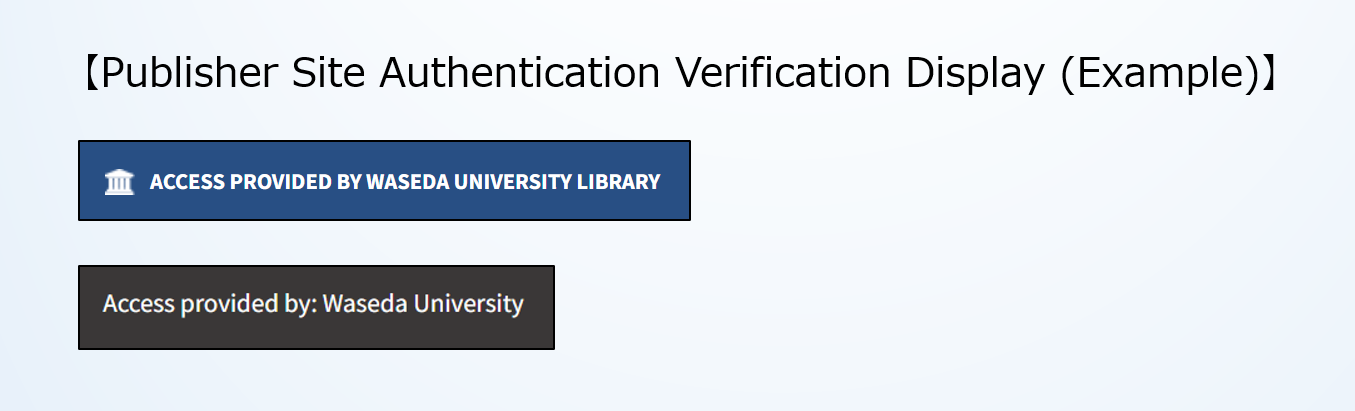
Once authentication is successfully completed, the publisher’s site will display the following message.
*Note: Some sites may skip this message.
Not all publishers offer direct access. In such cases, you must access the resource through the library link. Please use Method 1.
Q1. I’ve forgotten my MyWaseda password.
A1. For questions regarding your MyWaseda account, please contact the IT Service Portal.
Q2. Even when accessing according to the usage procedure, the authentication screen does not appear.
A2. If you are already logged in to MyWaseda beforehand, the authentication screen will not appear. The university’s off-campus access uses the SSO (Single Sign-On) method. With SSO, once you are logged in, you can subsequently use compatible authentication services without being prompted for another login screen.
Q3. After authentication, the following screen appears and I cannot access the electronic materials.
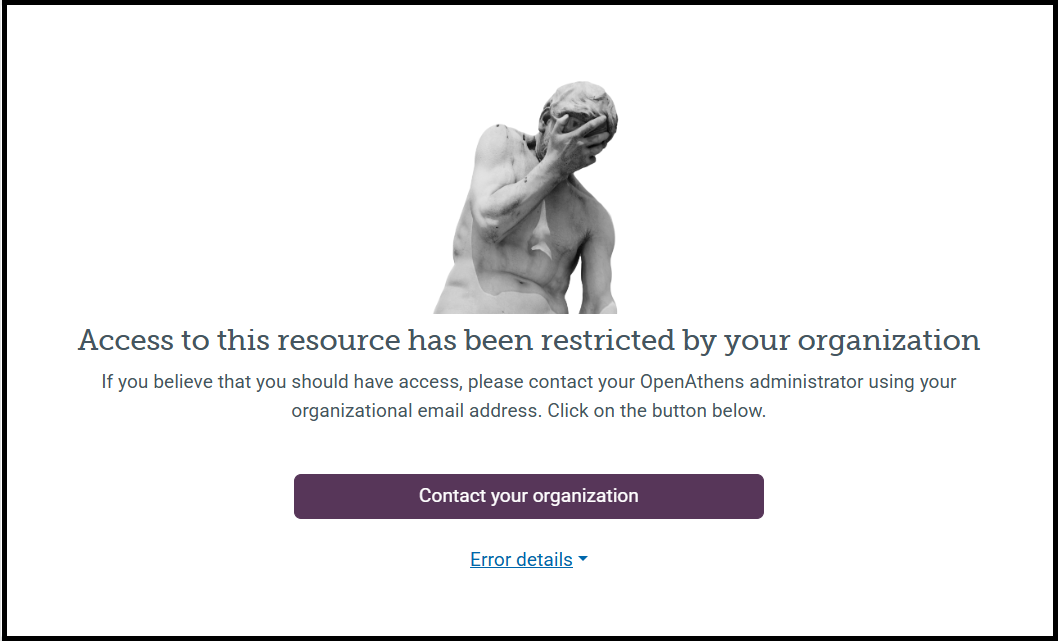
A3. Below are some common error examples (error messages) and their solutions.
◆”Account has been temporarily locked.”
Your account has been temporarily locked due to multiple incorrect password entries. Please wait 10 minutes before attempting to log in again.
◆”Access to this resource has been restricted by your organisation.”
You do not have permission to access this resource. Please verify your eligibility for off-campus access. If you are not eligible, please access it from within the campus network. Also the same error may happen for databases not available at Waseda University. Please use the method described in step 1 of Usage Procedure: “1. Access from search results.”
◆”Access to OpenAthens has been restricted by your organization.”
Your account has been suspended because the system detected activity consistent with unauthorized use. Please contact the library following Contact Method in Case of an Incident.
◆”Expected OpenAthens cookie not present.”
This message appears when the system cannot detect the “cookie” information that should be stored in your browser after authentication. Cookies are temporary data used to maintain your logged-in status. Please delete your browser’s cookies and log in again.
Q4. Are there “Login” and “Logout” buttons for off-campus access?
A4. There used to be “Login” and “Logout” buttons in the old system, but OpenAthens does not have such dedicated buttons. Please follow Usage Procedure provided on this page.
Q5. The institution name “Waseda University (早稲田大学)-OpenAthens” is not listed in Institution Login.
A5. The institution name may appear differently depending on the publishers, such as “Waseda University” or “Waseda Univ.” In addition, some publishers may not support institution authentication (SSO). If Institution Login is not available, please use the method described in step 1 of Usage Procedure: “1. Access from search results.”
Q6. Institution Login displays “Waseda University (早稲田大学)-OpenAthens” as the institution name, along with “WUL Tokorozawa Group” and “WUL Shinjuku-ku Group”.
A6. Please select “Waseda University – OpenAthens”.
Q7. Can I use “Off-Campus Access using VPN” for off-campus access?
A7. No, it is not permitted. For off-campus access, please follow the instructions on this page. We also recommend disconnecting any general VPN connection before using off-campus access (OpenAthens). Access via a VPN connection may cause the system to record your access as coming from multiple locations within a short time. As a result, it may be detected as unauthorized access and blocked.
Q8. I have successfully authenticated and accessed the system, but I cannot access the electronic resource I wish to read.
A8. Off-campus access (OpenAthens) is solely an authentication method and does not permit access to resources not purchased by the university. The item you are trying to read may not be included in the library’s licensed resources. Please contact the library for information on currently available resources.
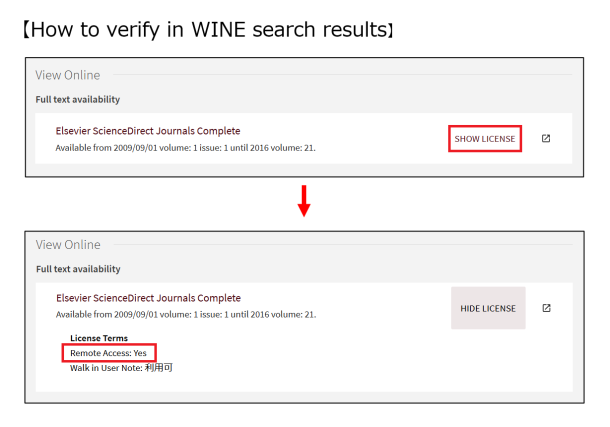
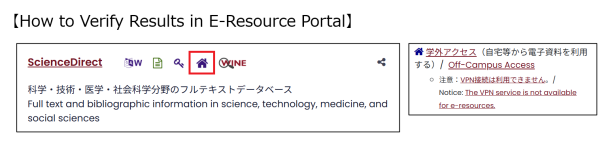
Q9. Is there a way to check whether electronic resources are accessible from off-campus?
A9. Electronic resources that display “Remote Access: Yes” when you click “SHOW LICENSE” in the WINE search results, or those marked with the “Off-Campus Access Available” icon in E-Resource Portal, can be accessed from off-campus.
Q10. When I try to access digital resources, I get the message “Connection refused at waseda.idm.oclc.org.”
A10. Your previous bookmarks will no longer work. Please be sure to follow the instructions on this page to access the digital resources. If you use reference management software, please check to see if any EZproxy settings remain in those programs.
[Example: If you are using the Zotero Connector]
The Zotero Connector may be storing information related to EZproxy. Please uncheck the “Enable proxy redirection” box under Zotero Connector > Proxies > Proxy Settings.
Additionally, your browser may have stored off-campus access data (cookies). Please delete this cookie data using the method described <here>.
Q11. <To be added as needed>
A11. <To be added as needed>
If you encounter any problems using Off-Campus Access , please contact the Library by email.
E-mail: info-wul(at)list.waseda.jp *Please replace (at) with @ when sending mail.
Problem Report Form:
Please copy and paste the text below.
“Report Problems: Off-Campus Access”
1. Name:
2. Affiliation:
3. Position:
4. Waseda ID:
5. Your operating system and its version: (Example) Windows 11
6. Your browser and its version: (Example) Microsoft Edge 144.0.3719.115
7. Your location while connecting: (Example) Home, Hotel room
8. Time and Date the problem occurred:
9. Name of the electronic resource you were trying to access:
10. Description of the problem:
Please describe the problem you experienced (error messages, error code and other details).


